I must admit that I am quite lazy (and not a very tidy person either). When I am given a new database connection to work with, I configure it in SQL Developer and save the password (so I do not have to type it when I connect and, more important, I do not have to remember it or store it safely somewhere else - shame on me!). As a consequence, when I am ask to provide the password to somebody else, it happens quite often that I do not remember it.
SQL Developer stores the saved passwords in an encrypted fashion in a file called connections.xml, which is normally available in \AppData\Roaming\SQL Developer\system folder.
Googling around, I have found a number of Java routines that can decrypt the passwords, but why spending time in compiling some Java code if a solution is already available?
This link http://show-me-password.tomecode.com has the instructions for installing a simple SQL Developer extension. It works great and it's the perfect shortcut for a lazy and forgetful programmer.
Visualizzazione post con etichetta SQL Developer. Mostra tutti i post
giovedì 26 gennaio 2017
martedì 11 ottobre 2016
Oracle Tip: executing SQL scripts in SQL Developer
One common problem with SQL Developer is executing huge SQL scripts (i.e. INSERT statements from the export of a big table).
Typically you will get the following error when trying to open the file:
which is caused by an OutOfMemoryError of the Java Heap space.
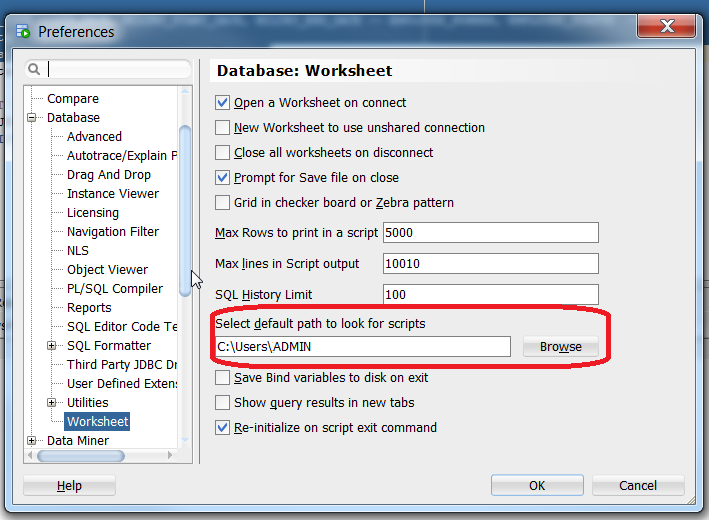
One convenient way to execute .sql without having to open the script in the SQL Developer editor is to configure the default path for scripts.
Go to Tools -> Preferences->Database->Worksheet:
and select the path where you want to place the SQL scripts to execute.
Then, go to the SQL Developer editor and simply use the @ command to reference and execute the script.
Typically you will get the following error when trying to open the file:
which is caused by an OutOfMemoryError of the Java Heap space.
One convenient way to execute .sql without having to open the script in the SQL Developer editor is to configure the default path for scripts.
Go to Tools -> Preferences->Database->Worksheet:
Then, go to the SQL Developer editor and simply use the @ command to reference and execute the script.
lunedì 13 ottobre 2014
Oracle Tip: enabling GRANTS in SQL generation in Oracle SQL Developer
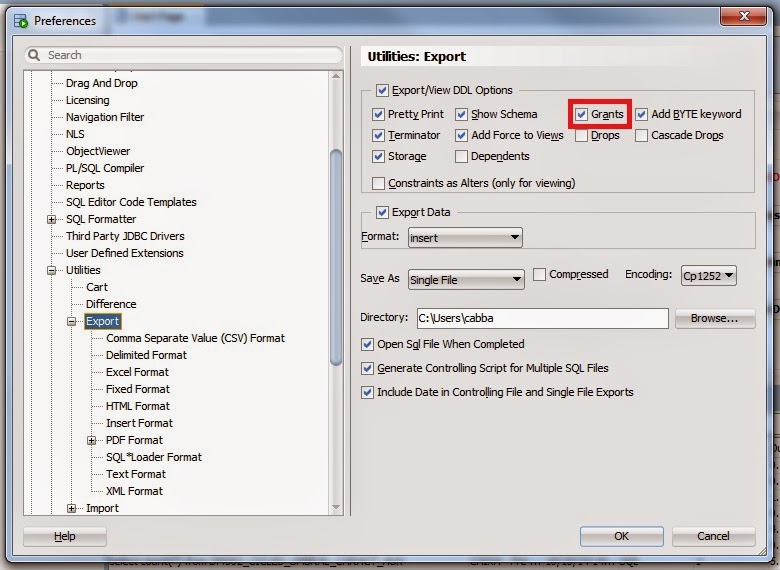
To show permissions in the code, you have to change the default settings of the product.
In the Tools -> Preferences, locate the Database -> Export node and tick the "Grants" option.
lunedì 3 marzo 2014
Oracle Tip: Changing SQL Developer Interface Language
By default, the SQL Developer installation gets your local settings when deciding which language to use. In my case it's Spanish and I must say that Spanish translations are pretty embarassing.
That's why I decided to change my installation to English.
To achieve that, locate your sqldeveloper.conf file. I have it in:
C:\<Installation_Path>\sqldeveloper-4.0.1.14.48-x64\sqldeveloper\sqldeveloper\bin
and open it. Add the following line:
AddVMOption -Duser.language=en
That's why I decided to change my installation to English.
To achieve that, locate your sqldeveloper.conf file. I have it in:
C:\<Installation_Path>\sqldeveloper-4.0.1.14.48-x64\sqldeveloper\sqldeveloper\bin
and open it. Add the following line:
AddVMOption -Duser.language=en
and restart the program.
Iscriviti a:
Post (Atom)