The most annoying part of my job is generating documentation. I hate when you finish a project and you have to go through all your code and interfaces to describe what they do. This is mainly for two reasons. First, I am not so well organized that I write down every little change when I apply it. Mea culpa. Second, because most of the time I am in a hurry and the most important thing is showing results instead of documenting what you are doing.
When you develop a considerable amount of interfaces, involving a considerable number of tables, columns and transformations, the last thing you want to do is re-open them to describe their behaviour.
Luckily,
ODI provides a feature for generating
PFD documents of your job. To use this functionality, you first have to configure it.
In ODI->User Parameters, you have to edit the following entries:
- Default PDF generation directory: this is the complete path to the folder you want to save your documentation to. E.g. C:\TEMP\
- PDF Viewer: Full path to your PDF viewer. E.g. C:\Program Files (x86)\Adobe\Reader 10.0\Reader\AcroRd32.exe
ODI allows you to generate documentation for the following objects:
- Knowledge Modules: right click on a project, then Print -> Print Knowledge Modules
- Packages: right click on a project folder, then Print-> Print Packages
- Procedures: right click on a project folder, then Print -> Procedure
- Interfaces: right click on a project folder, then Print -> Interfaces
- Folders: right click on a project folder, then Print ->Folder
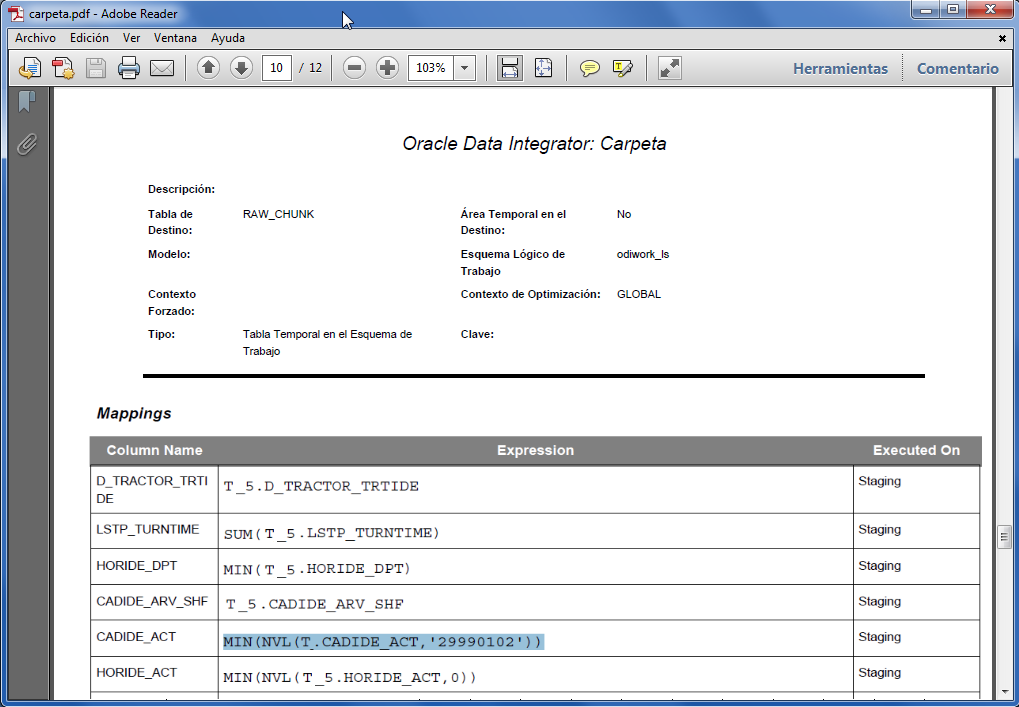
The result is a PDF file with detailed information of the object you printed. The most complete option is the one for printing folders, because you can generate documentation of every object in it.
The thing I like the most is the fact that for every interface you get the physical structure of every source and target table, every join and, most important, each transformation you apply to get a target column.